Using MailWrap on macOS Monterey

Apple’s Mail Plug-In system is quite amazing, and has led to some innovative and brave developments as an MUA (Mail User Agent). These brave developments include: wrapping long lines like a decent MUA, quoting messages in replies correctly like a decent MUA, and an option to Wrap Text like a decent MUA.

I actually forgot to install MailWrap on my M1 when I built it up, and haven’t noticed mostly because I haven’t been posting to mailing lists lately. However, I feel deep personal shame for posting on lkml without remembering to install it first. Look at those long lines!

So I set out to install MailWrap. It certainly is a lot more difficult than it used to be.

#1: Allowing the installer to access ~/Library/Mail

The first time I tried to install MailWrap, I received the unhelpful message that access to ~/Library/Mail/Bundles was denied. This is because I had to grant Terminal the Full Disk Access permission.

You can do this in System Preferences under Security & Privacy. You’ll be helpfully reminded that you have to restart Terminal. Hope you don’t have six active SSH connections open, like I did!

#2: Using the correct UUID

Now we need to add the correct UUID to the Info.plist file. Open ~/Library/Mail/Bundles/MailWrap.mailbundle/Contents/Info.plist in your favourite plain-text editor. Scroll to where you’ll find “Supported10.16PluginCompatibilityUUIDs” and then add the following lines under the “</array>” line:

        <key>Supported12.2PluginCompatibilityUUIDs</key>
<array>
<string>6FF8B077-81FA-45A4-BD57-17CDE79F13A5</string>
<string>25288CEF-7D9B-49A8-BE6B-E41DA6277CF3</string>
</array>

Note that this says “12.2”; when 12.3 comes out, we will need to change this again.

#3: Sign and allow the bundle to run

Gatekeeper will try to keep you safe from untrusted code, which is generally a good thing. We can sign our bundle now:

$ cd ~/Library/Mail/Bundles
$ codesign -f -s - MailWrap.mailbundle

And now that it is signed properly, we can tell Gatekeeper to trust the signature:

$ sudo spctl --add --label “MailExtensions” MailWrap.mailbundle
$ sudo spctl --enable --label “MailExtensions”

Troubleshooting

Incompatible Plug-ins Disabled.  Mail has disabled the following plug-ins: MailWrap.mailbundle Contact the makers of these plug-ins for versions that are compatible with Mail 15.0.
Incompatible Plug-ins Disabled

If you receive this Incompatible Plug-ins Disabled message, then something has gone wrong with your UUIDs. You’ll need to try again and make sure that you’ve pasted those lines in the correct spot.

“MailWrap.mailbundle” is damaged and can’t be opened.  You should move it to the Bin.  Mail created this file on an unknown date.
“MailWrap.mailbundle” is damaged and can’t be opened.

I received this message when I edited the Info.plist file after running codesign. It means the CodeSignature doesn’t match the contents. You need to re-run the codesign command every time you change any file in the bundle to keep the signature updated.

“Mail” needs to be updated.  This app will not work with future versions of macOS and needs to be updated to improve compatibility.  Contact the developer for more information.
“Mail” needs to be updated.

This message is because MailWrap uses Python 2.7. Hopefully I will have some time to update it to Python 3 before the eventual removal of Python 2.7 from macOS. I’ve had success doing this before, so hopefully it goes well.

In conclusion

Now my emails are nice and wrapped and I’m not breaking a bunch of email clients in faraway lands. And all was quiet in the world. (Except not: the kernel is still broken, and Ukraine is still being invaded.)

I hope this post was useful to you. Happy hacking!
2 TB USB drive on a PowerBook G3 Pismo

I have a 2 TB USB SSD for my photo library, and I wondered: would it work on my PowerBook G3 Pismo with Mac OS 9? Let’s find out!

Here’s a quick, fun anecdote from the Retro Lab. I bought a Sandisk Extreme 2 TB USB NVMe drive on Black Friday. (Actually, I bought it the Wednesday before Thanksgiving.) My intention is to use it for storing my entire photo library.

I primarily intend to have it connected to my M1 MacBook Pro, but it comes with a USB-C to USB-A adaptor, and states it is compatible with “any computer with a USB port”. I decided to put that statement to the test with my trusty Pismo.

This computer was the top of the line for the year 2000, including a 500 MHz CPU and Mac OS 9. I tried to do some searches online to see the maximum volume size that Mac OS 9 can support. Most of my searches simply showed “more than 200 GB”. Okay, then!

I booted the Pismo and connected the drive to the rear USB port. Lo and behold, there really was no step 2: it showed up immediately in the Finder.

My new 2 TB NVMe SSD working perfectly on a Pismo running Mac OS 9.

It makes me happy that if I ever feel the desire to fire up Kai’s Power Goo again, I can do so with any photo in my library. Have fun, everyone!

Designing a Sheet in Interface Builder

Quick tip time! This is an anecdote from a libre project I’m working on, specifically Auctions.

One of the things I am doing right now is implementing the Cocoa/Mac UI. I’m writing a flow using sheets for signing in to accounts. I had a lot of issues making the sheet accept input; it just wouldn’t let any of its fields become the first responder.

Poking around DuckDuckGo, I found a Stack Overflow question that seemed pretty interesting, and the answer was to override NSPanel‘s canBecomeKeyWindow method to return YES. I did some searching around in Apple’s Developer Documentation to see how the system determines when a window can become a key window, and I found this nugget:

A window that uses NSWindowStyleMaskBorderless can’t become key or main, unless the value of canBecomeKeyWindow or canBecomeMainWindow is YES. Note that you can set a window’s or panel’s style mask to NSWindowStyleMaskBorderless in Interface Builder by deselecting Title Bar in the Appearance section of the Attributes inspector.

Apple Developer Documentation

I had turned off Title Bar in Interface Builder as I thought it should be disabled since the window would be shown as a sheet. I re-enabled Title Bar, and voila! The sheet worked perfectly, and did not have a title bar when displayed as a sheet.

Welcome to Windows 2000: The Athlon is Go

It has been a while since I have written an article about retrocomputing. In some ways, it feels weird to refer to Windows 2000 as retrocomputing. I used Windows 2000 as my go-to operating system for the majority of high school, well after Windows XP was released. And yet, it is now 22 years old.

I have a special affinity for Windows 2000 in my heart.  It’s the last version of Windows that has the true “classic” UI.  Windows XP and later do have “Windows Classic” themes, but they are still obviously tweaked.  It is new enough to run some software considered modern yet old enough to run many of the software designed for older Windows versions.  The NTVDM still supports 16-bit Windows 3.x apps, and I’ve had success running DOS applications on it as well.

But none of that can compare to the true reason I find Windows 2000 so comfortable.  Weeks before my grandfather died in 2001, he took me to his new office to show me where he worked.  He had a Windows 2000 workstation and let me unlock it and open some of his files.  It was the first time I used a computer running Windows 2000, and the last time I used a computer with him.

The Athlon: An introduction

I have a Compaq Presario 2100 laptop.  It is a surprising workhorse.  I bought one new, in 2003, and had it for many years – but I gave it away to a friend who needed a computer in 2010.  In 2019, I needed a 32-bit x86 system for testing Qt 5 and Firefox for Adélie, so I found a Presario 2100 on eBay in good condition for a good price.  It ran Adélie for a while, with Windows XP Professional in dual-boot.

This individual specimen has a 2.1 GHz Athlon XP, 1 GB RAM, and a 250 GB WD Blue disk.  It’s a perky little laptop, with enough oomph to play some great games (SimCity 4!  Midtown Madness 2!) and chomp through small builds.  The Presario 2100 is actually one of the systems I did OS development on back in the day, and I ran everything from NetBSD to Solaris to Windows Server on it at one point or another.

The only quirk I’ve noticed – which will be relevant later in this article – is that when booting Linux, the battery needs to be removed.  It doesn’t hold a charge, and the kernel’s ACPI module is angry and deadlocks if the battery is present during initialization.

Installing the Windows 2000.

I inserted my Windows 2000 CD and proceeded through installation.  It took over two hours to perform the “hardware detection” phase, which struck me as odd.  About 20 minutes in, I turned the system off and back on as I was hoping that would help it along.

The GUI was slow and nearly unresponsive. It took multiple seconds to draw simple controls. And installation, in all, took almost four days to complete. When restarting, it was very slow to boot as well. I was concerned there may be a fault somewhere – perhaps the CPU was failing. However, Windows XP still worked fine.

I used the debug logging facility of NTLDR and found it slowed when ACPI.SYS was loaded. I removed the battery and rebooted Windows 2000. It was instantaneous. As it turns out, the Windows 2000 ACPI driver was having the same issue as Linux. After upgrading to SP4, I was able to boot with the battery inserted without issue, so the issue has been worked around in a patch.

You’ve come a long way, baby.

The next step was installing the drivers for all of the hardware. The modem, network adaptor, and display adaptor were simple and worked just fine.

I installed the official Broadcom wireless drivers from HP’s Web site. It worked, but only supported WEP and WPA networks. My network is, of course, WPA2. I found this fantastic backport of the Vista driver to older Windows versions. I installed it, and then installed the Boingo Wireless client for a front-end. To my surprise, the laptop works flawlessly joined to a VLAN on my dd-wrt powered Linksys WRT3200ACM. This allows me access to some internal resources on my network – most importantly, a micro HTTP server on my laptop where I can stage patches and file downloads from the Internet.

Boingo Wireless, happily running WPA2 on Windows 2000

At some point, I do think it would be an interesting project to set up a proxy server and allow the laptop limited access to the real Internet.  It will require a lot of research to ensure full security.

And now for the fun!

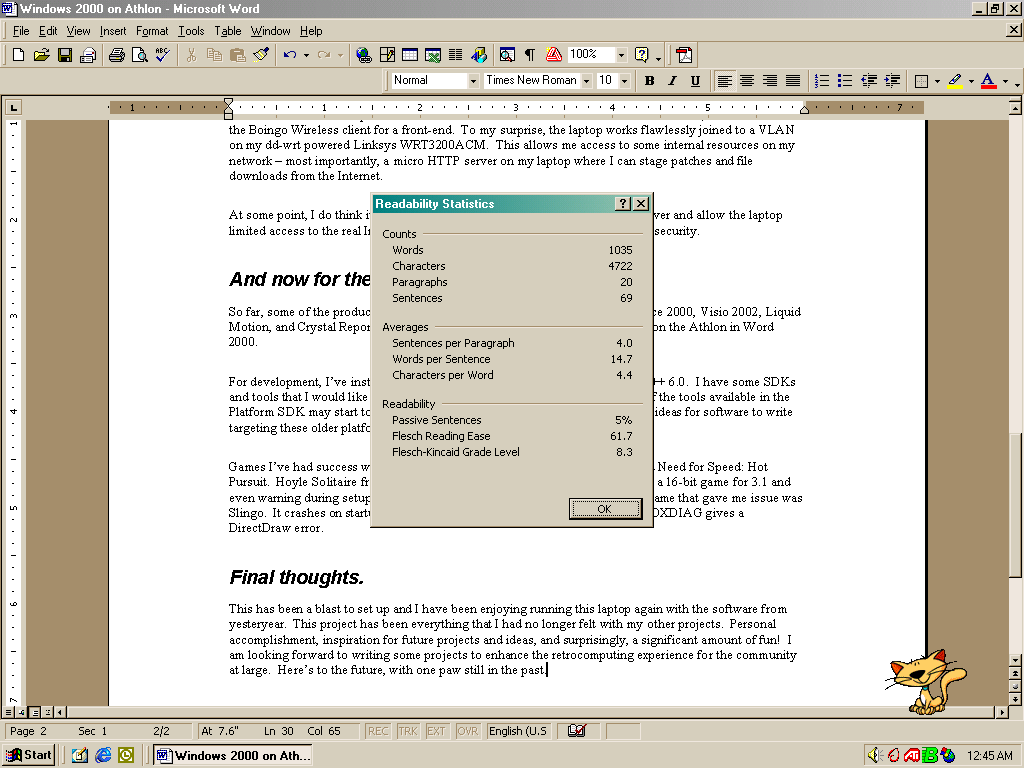
So far, some of the productivity software I’ve installed includes Office 97, Office 2000, Visio 2002, Liquid Motion, and Crystal Reports.  In fact, this blog article has been written entirely on the Athlon in Word 2000.

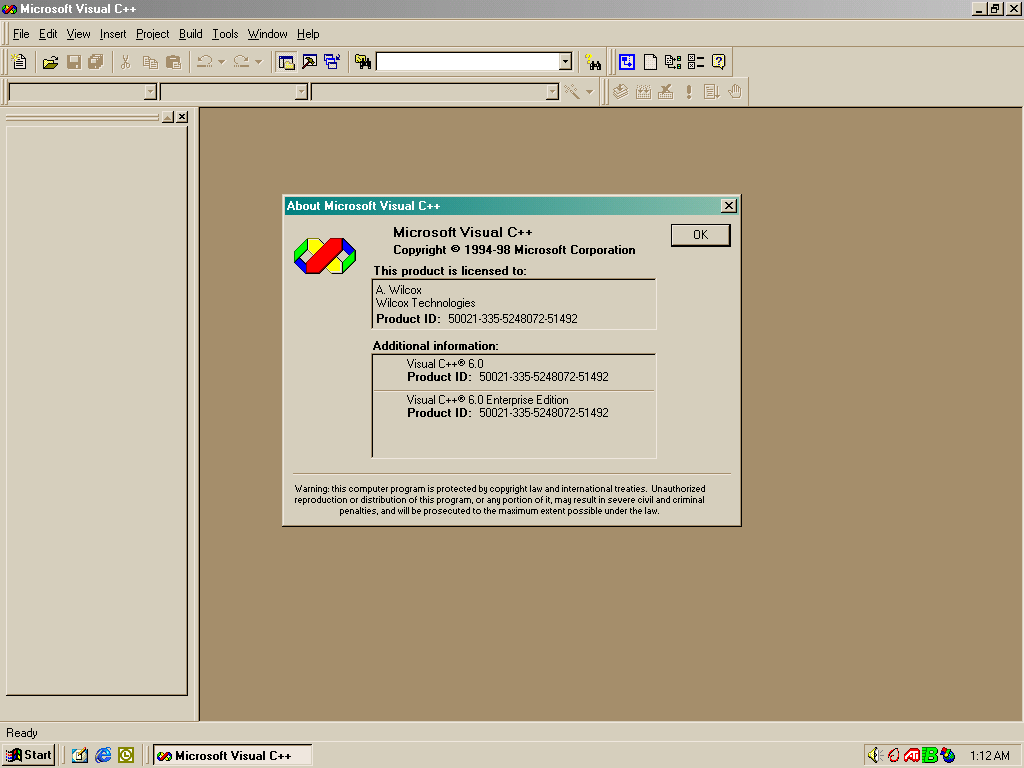
For development, I’ve installed Visual Studio 6.0 Enterprise including Visual J++ 6.0.  I have some SDKs and tools that I would like to add, but I haven’t found a lot of time yet.  Some of the tools available in the Platform SDK may start to be useful to me soon.  I am definitely having strong ideas for software to write targeting these older platforms.

Games I’ve had success with include Hasbro’s Yahtzee, Chessmaster 7000, and Need for Speed: Hot Pursuit. Hoyle Solitaire from Sierra On-Line also runs flawlessly despite being a 16-bit game for 3.1 and even warning during setup that “Windows NT has not been tested”. The only game that gave me issue was Slingo. It crashes on startup, before the intro screen, and running the included DXDIAG gives a DirectDraw error.

Final thoughts.

This has been a blast to set up and I have been enjoying running this laptop again with the software from yesteryear.

This project has been everything that I had no longer felt with my other projects. Personal accomplishment, inspiration for future projects and ideas, and surprisingly, a significant amount of fun!

I am looking forward to writing some projects to enhance the retrocomputing experience for the community at large. Here’s to the future, with one paw still in the past.